Answer support questions and identify companies with Eloquent's AI chatbot for WordPress
Answer engine
Answers FAQs and “where do I find…” questions using your existing pages (pricing, policies, docs, service pages, knowledge base articles).
Recommend pages
Recommends the right page/article when the best answer is already on your site so visitors don’t have to click around.
Collect data
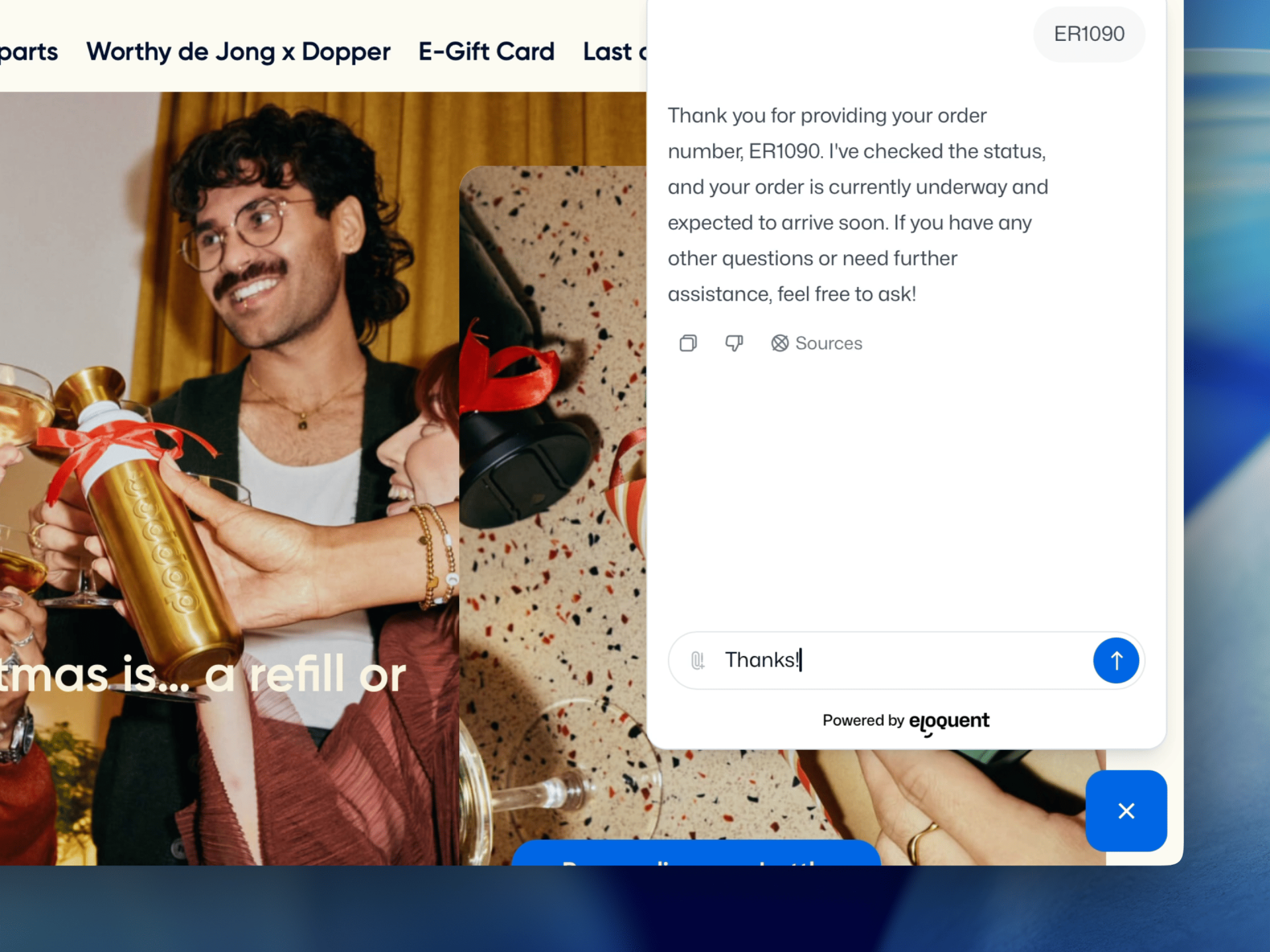
Collects details before handing off (like email, topic, order number, project type, or urgency) so your team doesn’t start from scratch.
Identify companies
Identifies company visitors by matching incoming traffic to a company profile and enriching conversations with firmographic context.
Trained on your WordPress content (no manual FAQ writing)
Eloquent learns from the content you already publish in WordPress, so your chatbot answers the way your website does and stays up to date as your site changes.
3-step setup
Connect your WordPress site: Login with Eloquent and open your agent, go to the Playground and enter your website URL. Eloquent stores your sitemap so it knows which pages to learn from.
Choose what to include: Index your full site or select only specific sections (for example your docs, policies, service pages, or knowledge base). You can also exclude pages you don’t want it to use.
Stay accurate automatically: Eloquent checks for changes every 24 hours and refreshes the chatbot’s knowledge, so updates to your WordPress content are reflected without extra work.
How to add the chatbot to WordPress
Eloquent always runs via one JavaScript snippet but teams place that snippet in different ways depending on how they manage your WordPress website.
Option A: Use our Wordpress plugin
If your not really technical this is a great way to start using our AI chatbot on your Wordpress website.
Open your agent in Eloquent and go to "Deploy" in the agent menu. Copy the Domain Identifier from the snippet, this is the unique string behind: domain-identifier=YOURDOMAINID
Paste the Domain Identifier in the Eloquent chatbot plugin and your good to go!
This will work with all WordPress themes and builders and includes the snippet site-wide.
Option B: Direct JavaScript snippet (recommended)
Best if you want the fastest, simplest path.
Copy the snippet from the Deploy menu in your agent
Add it to the <head> of your WordPress site (site-wide)
Publish and verify the widget appears where you want it
This works with most WordPress themes and builders, as long as the snippet is included site-wide. If you don't manage your website yourself you can send the instructions directly to your web developer via email.
Option C: Google Tag Manager (GTM)
This plays nicely if your WordPress website already manages scripts through GTM. It does require some knowledge about GTM.
Create a Custom HTML tag
Paste the snippet
Trigger on All Pages (or only selected paths if you want limited rollout)
Option D: Use a WordPress “insert code in header” plugin (no-code)
If you don’t want to edit theme files in Wordpress, you can install a plugin that lets you paste the snippet for the AI chatbot into the <head> from the WordPress admin.
Paste the Eloquent snippet into the Header / Head field
Save changes
Clear your WordPress cache (if you use a caching plugin), then test
Common WordPress setup issues (and quick fixes)
WordPress sites often use caching, script optimization, and staging environments. These quick checks make sure your chatbot loads consistently and learns from the right content.
Caching & performance plugins Some WordPress setups delay or optimize scripts. If the widget doesn’t appear right away, exclude the chatbot snippet from aggressive script optimization and clear your cache.
Snippet placement (site-wide <head>) The AI chatbot needs to be loaded across the whole site. Make sure the snippet is included in the global <head> so it appears consistently on all pages.
Staging vs production content If you use a staging domain, keep it separate from production so the chatbot only learns from the content you want visitors to see. Exclude staging/private URLs from indexing if needed.
Frequently asked questions
Here are the most common questions about using Eloquent on WordPress, how setup and deployment works, and what you can expect once it’s live.
WordPress chatbot FAQs
Does it work with caching plugins?
Yes. Because the widget loads separately, most caching/minification setups won’t be an issue. If a caching plugin aggressively delays or rewrites scripts, you may need to exclude the chatbot snippet from heavy optimization so it loads reliably.
Does it work with WPML (or multilingual WordPress sites)?
Yes. If your site has language-specific URLs or sitemaps, you can index per language so visitors get answers in the language they’re browsing. This helps avoid mixed-language answers and keeps recommendations consistent.
Can I show the chatbot only on certain pages?
Yes. Many teams start by enabling it on high-intent pages like /pricing/, /contact/, and /support/. You can control where it appears using URL rules so you can roll out gradually and measure impact.
Can I exclude private or staging URLs from indexing?
Yes. You can whitelist and blacklist URL patterns and exclude anything you don’t want the agent to learn from (like staging environments, internal-only pages, or anything behind login). If you use a staging domain, it’s best to keep it separate from production indexing.
Does it slow down my WordPress site?
We defer loading the agent to avoid impacting page performance. In most setups, it won’t noticeably affect page speed — and if performance is critical, you can start on a subset of pages or staging first.
How do you handle GDPR consent and data retention?
You stay in control. You can configure what information gets collected, where conversations are sent, and how long data is retained. If you want consent messaging or a stricter “no personal data by default” setup, you can configure the agent to ask for permission before collecting identifiers.
Can the chatbot create support tickets or notify my team?
Yes. When escalation is needed, Eloquent can send a summary + transcript to your chosen channel (email, Slack, or your helpdesk). That way your team gets the full context without copy-pasting.
Can I control what it answers (and what it should refuse)?
Yes. You can set boundaries and rules in the agent configuration, choose templates, and fine-tune prompts so it stays aligned with your tone of voice and policies. You can also restrict which sources it’s allowed to use.
What does pricing look like for Eloquent on WordPress?
Pricing depends on usage and the setup you need. You can start with a free trial, then choose a plan that matches your traffic and goals. See our Pricing page for full details (or contact us and we’ll recommend the best starting point).
What Eloquent helps visitors do on your WordPress site
Pricing & plans
Make pricing and packages easy to understand: compare plans, pick the right fit, and set expectations for onboarding.
Integrations & product fit
Help visitors confirm compatibility and find the right technical details: integrations (like HubSpot or Salesforce), documentation, and key feature questions.
Support & policies
Resolve common support questions instantly and keep things consistent: contact support, SLAs/response times, returns or cancellations, and account or subscription changes.
Sales & routing
Turn buying intent into action: request a quote, book a call, route the conversation to sales, and log it to your CRM.
Human handoff & follow-up
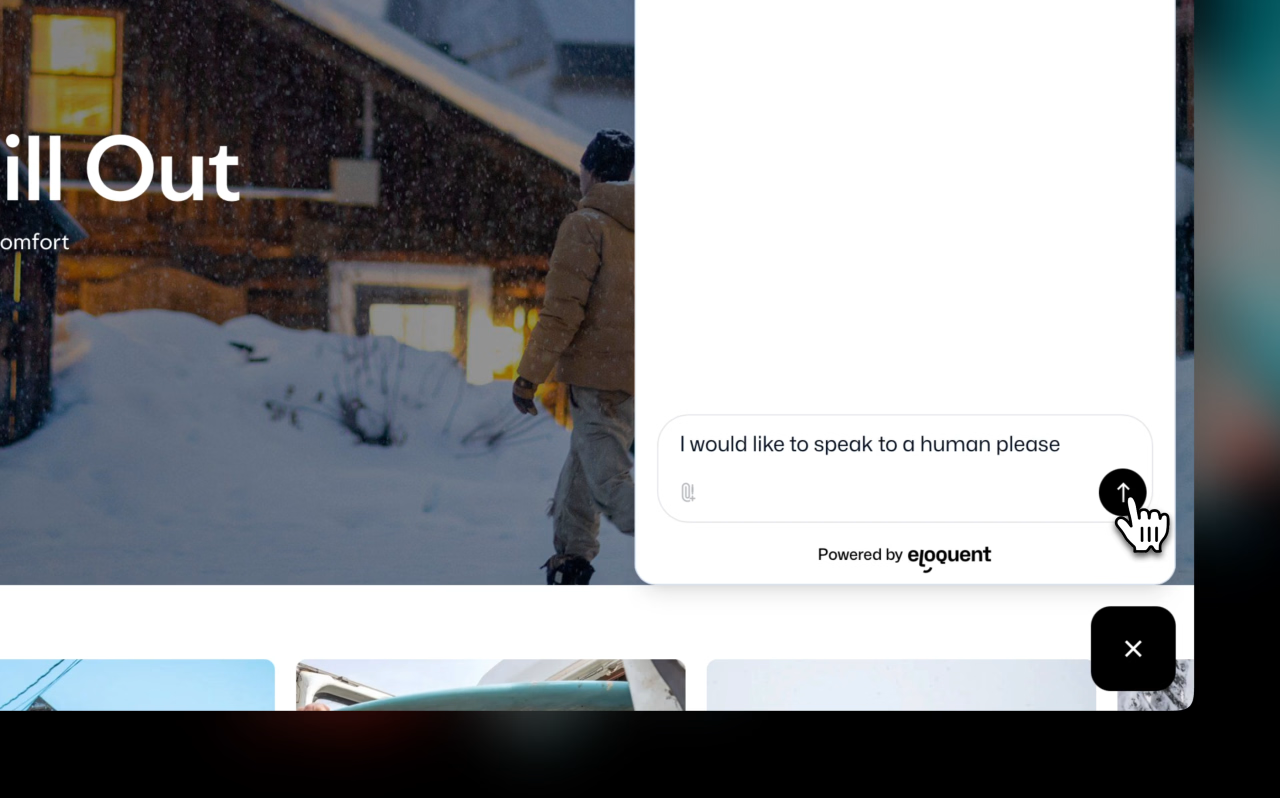
When a visitor needs a person, whether it’s a support issue or buying intent, Eloquent can collect the right details, summarize the context, and route the conversation to the right team. You decide what triggers a handoff, which questions are asked before routing (email, topic, order number, company, role, use case, timeline), and where it should go (for example email, Slack/Teams, helpdesk, webhook, or CRM logging when configured).